Native Traktor Pro 4 Mode
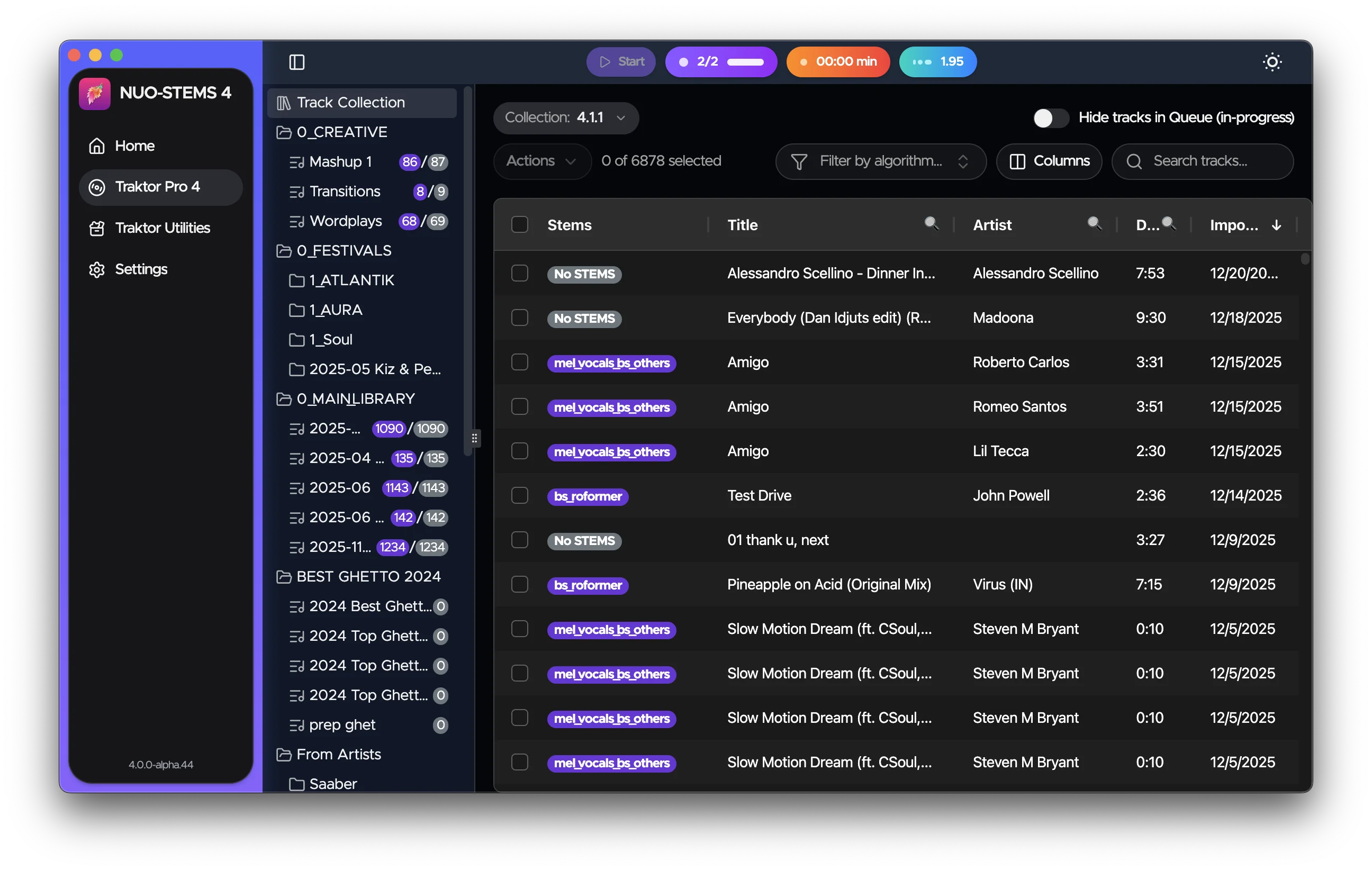
In Traktor Pro 4 native mode, STEMS are generated and linked to the original track in the collection. This provides a seamless experience where your stems appear directly in Traktor Pro 4, just like tracks generated with the built-in stem feature.

When using "Native Traktor Pro 4" mode, NUO-STEMS 4 saves natively linked STEMS ({hash}.stem.mp4) ONLY in the folder you have set for Stems in Traktor Pro 4 Preferences.
It's Traktor Pro 4 requirement to have stems in a specific folder and specific filename format. NUO-STEMS 4 follows this requirement to ensure that stems are compatible with Traktor Pro 4.
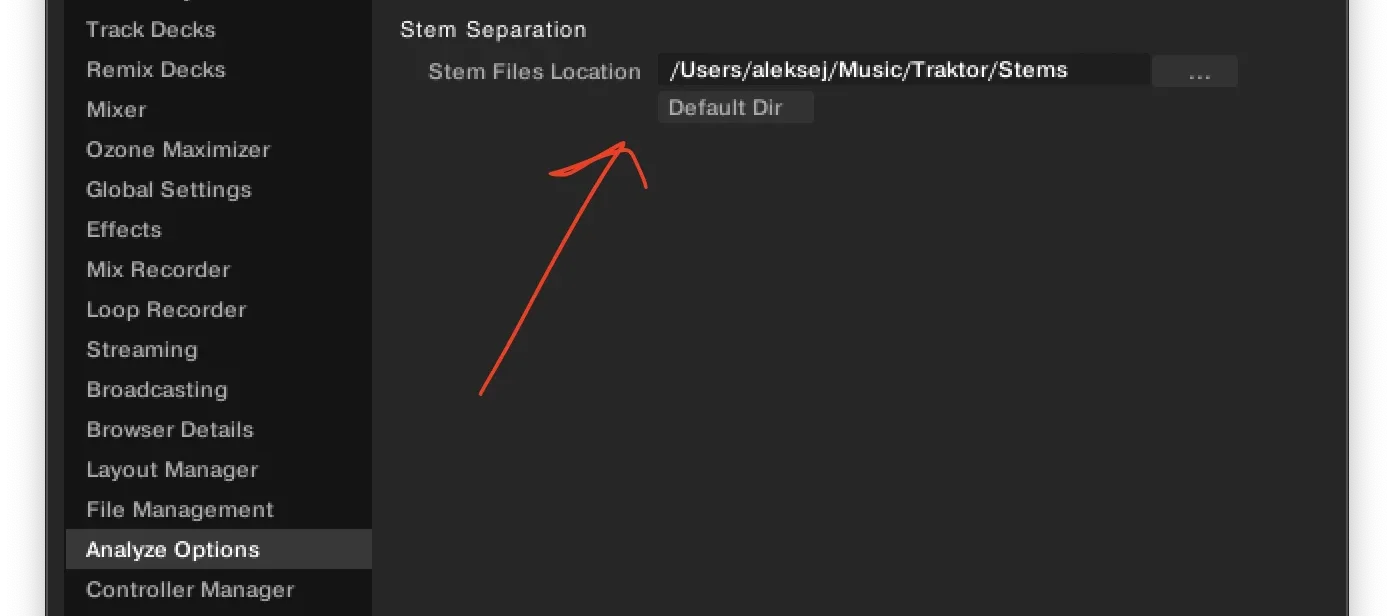
This also means that no .stem.m4a files are saved to the "output folder" you set in NUO-STEMS 4 Settings.
If you want to save legacy .stem.m4a files in whatever folder you want, you can do so by using Traktor Pro 4 Legacy / Export Mode.
Generating STEMS
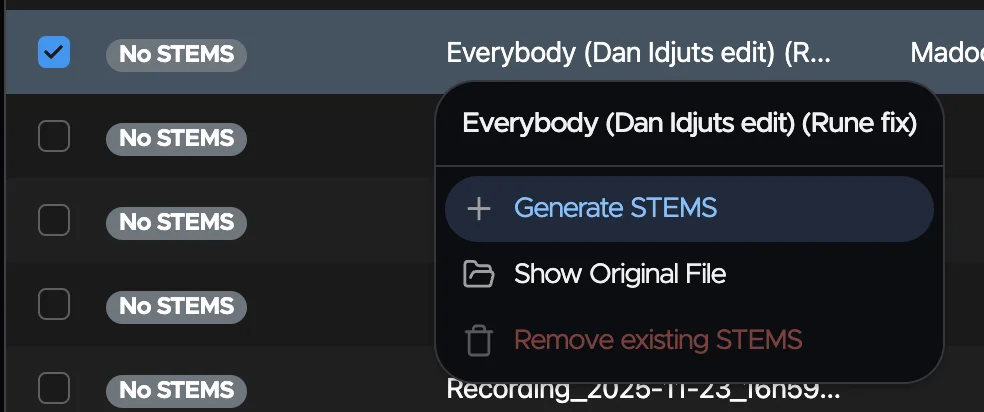
Right-click on any track in your Traktor collection to generate STEMS.
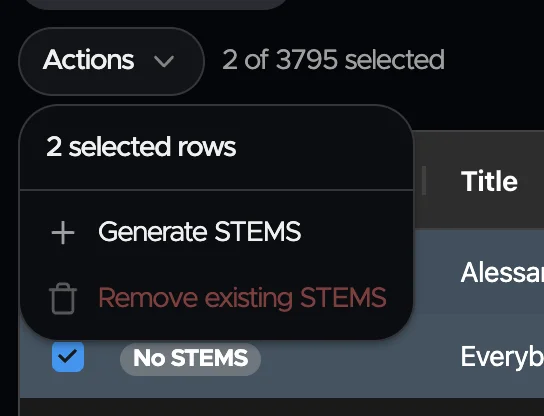
Alternatively, use the Actions menu to generate STEMS for selected tracks in your collection.
Monitoring Progress
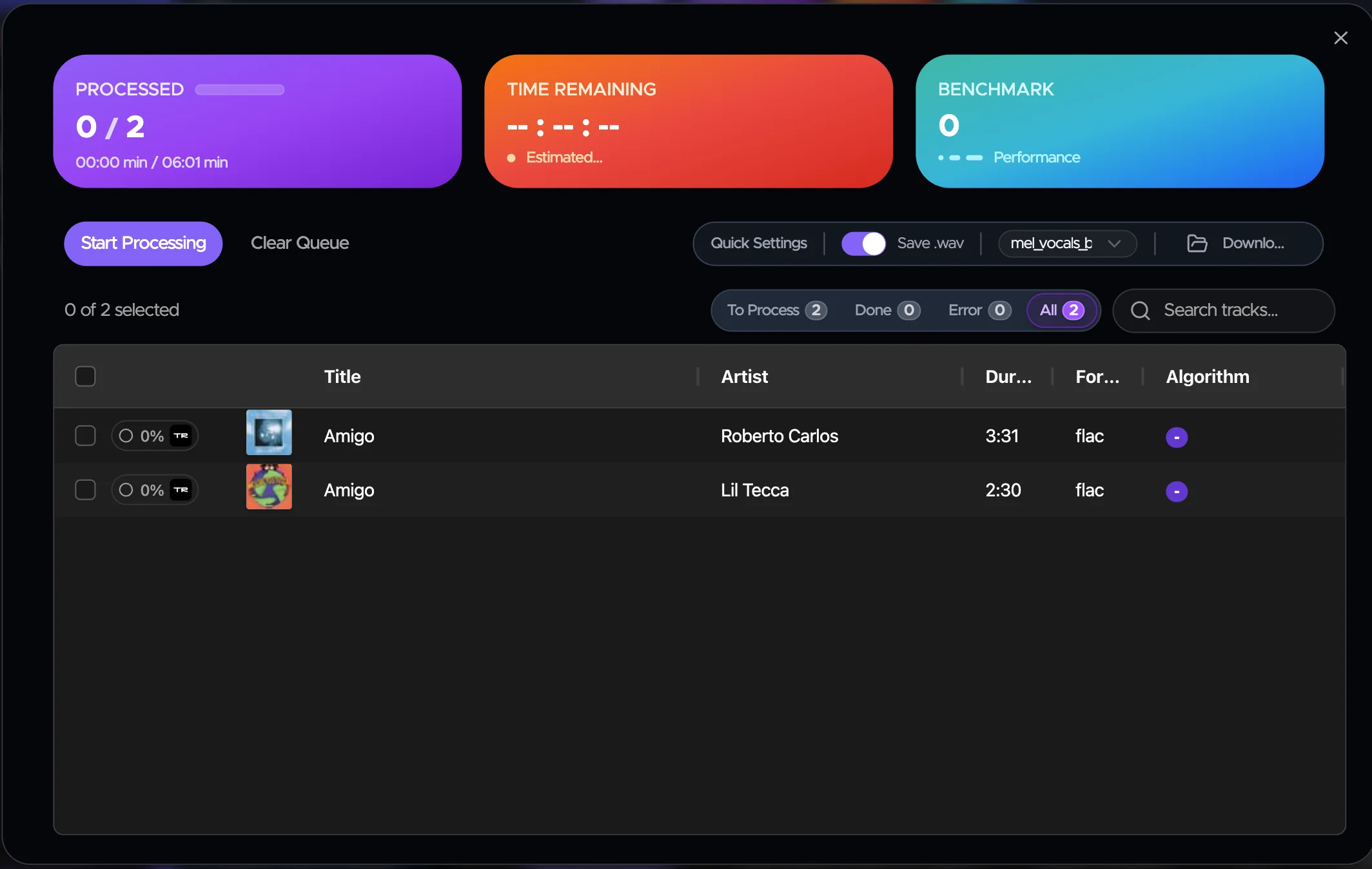
Track the progress of your STEMS generation in the header. Click on it to open the Queue.

Managing Your Queue
View and manage all your STEMS generations in the Queue. Monitor progress, pause, resume, or cancel operations as needed.
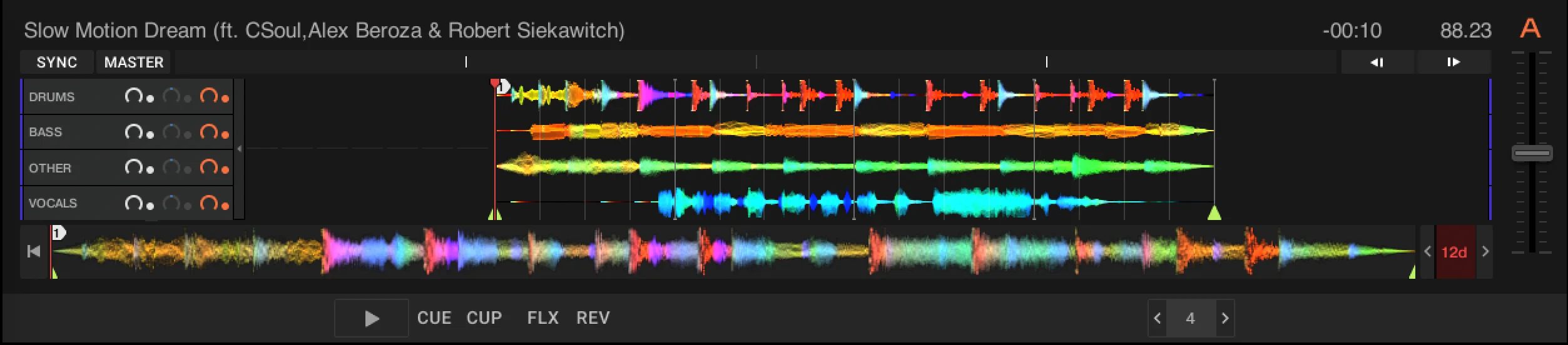
STEMS Generated and Linked
Once the STEMS are generated and linked, you will see the algorithm next to the original track.

You will also see the linked STEMS icon in the Traktor list view next to the original track.
Using STEMS
Now you can load the original track into the deck and play the STEMS.
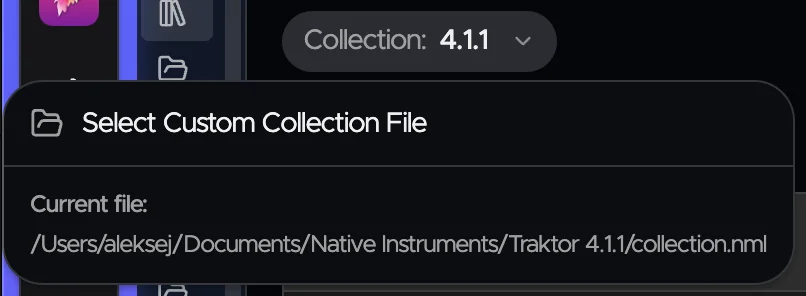
Custom Collection Selection
If your collection is not located in the default location, you can select it manually.
What if I have duplicate tracks and use "Native Traktor Pro 4" mode?
This applies only to Traktor Pro 4 native mode.
Traktor searches for linked stems files by AUDIO_ID of the original track. This means that if you have duplicate tracks (same original) in your collection, they will share the same linked stems file ({hash}.stem.mp4).
Important: If you process stems for one duplicate track using Traktor's built-in stem separation, it will overwrite the NUO-STEMS processing for all other duplicate tracks of the same original.
To avoid this issue:
- Remove duplicate tracks from your collection. (recommended)
- Use NUO-STEMS 4 exclusively for stem processing when you have duplicate tracks
This is a Traktor limitation, not a NUO-STEMS 4 limitation.
Here is what an example of this issue looks like:
- Generate Stems for Track A in NUO-STEMS 4 in "Native Traktor Pro 4" mode
- Go to Traktor and add another duplicate of the track
- Now you have Track A (already processed by NUO-STEMS 4) and Track B (duplicate of Track A, not processed, doesn't have linked stems)
- Click "Generate Stems" for Track B in Traktor Pro 4
- The NUO-STEMS 4 processing of Track A gets overwritten (both tracks now use Traktor's stem separation)
Dealing with Errors in NUO-STEMS 4
Errors happen. If your track fails to process, you can see the exact error message by hovering over the error icon next to the track in the queue.
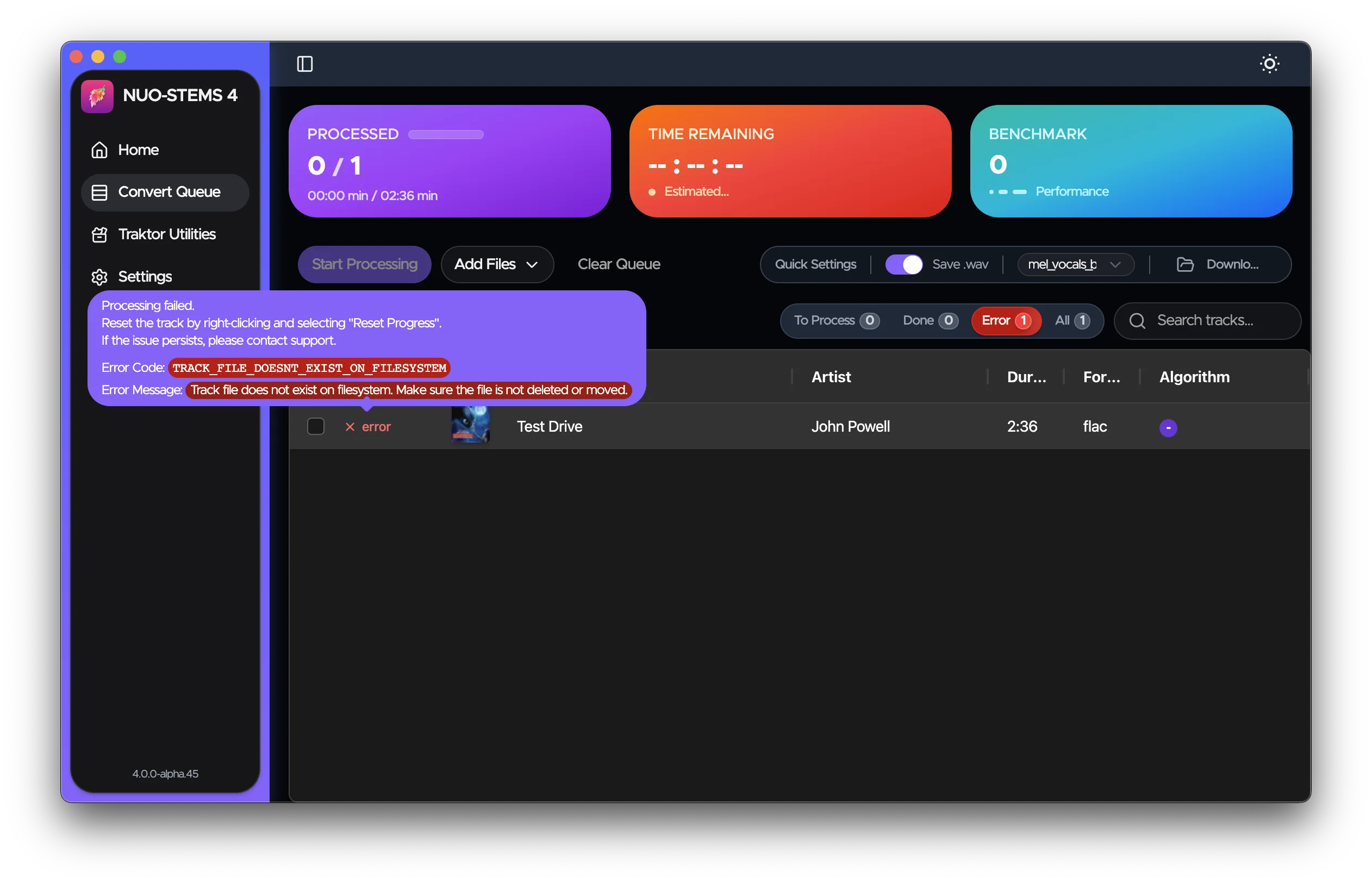
It's usually enough to understand the error and fix it on your own.
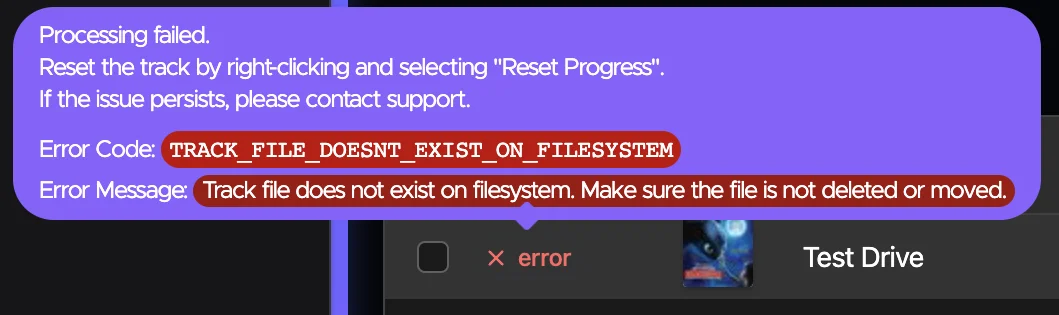
Sometimes, error may simply go away if you just re-add the track to the queue.
Getting Help
If you continue to experience issues or you're not sure how to fix the error:
- Join our Discord server: https://discord.gg/dfpk9FbvJE
- Contact me: [email protected]
When reporting errors, please include:
- The error message you're seeing
- Steps to reproduce the issue
- The
main.logfile from the logs directory - open NUO-STEMS 4 Settings -> Advanced -> Open Logs Folder.- Don't share the log publicly - only to [email protected]